Edit pages with the block editor
Use WordPress's own editor, with the Naara menu and header-buttons blocks and ready-made industry patterns.
If you do not use Elementor, every Prestige page can be edited in WordPress's block editor. It needs nothing extra.
#1. Open a page
Go to Pages, click a page title or Add Page. The editor opens.
#2. Open the block inserter
Click the blue plus at the top left.
#3. Search for Naara
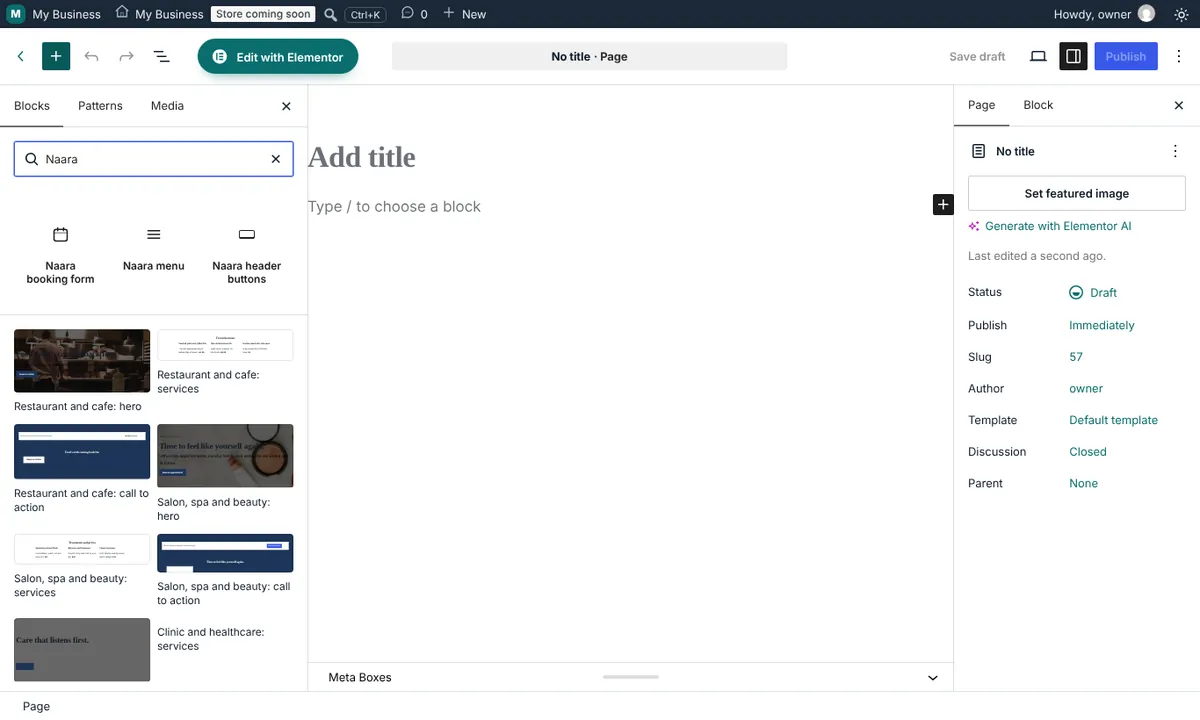
Type Naara. You will find:
| Block | Use it for |
|---|---|
| Naara menu | A premium menu with dropdowns |
| Naara header buttons | The open-now badge, light/dark switch and your main button |
| Naara booking form | The live booking form (after you connect to Naara) |
Click a block to add it. Choose its menu and style in the right-hand Block panel. Colour, font size and spacing use WordPress's normal Styles panel.
#4. Use the patterns
Open the Patterns tab and search Naara Prestige. For every industry you will find a hero, a services row and a call to action written in that industry's own words, plus a Header row: logo, menu, buttons pattern. Click a pattern to insert it.
#5. Save
Press Update (or Publish).
Tip You can mix both: keep Elementor for pages you design visually and use the block editor for blog posts and quick edits.