See every template live
Open any of the 40 industry templates inside Naara, click through its pages, and try phone, tablet and dark mode before you install.
Before you install anything, look at the real thing. The previews on this site are the actual theme, not pictures: every page works, the menu opens, dark mode switches.
#1. Open the gallery
Go to all templates. Use the search box (try "salon", "clinic", "hotel") or the chips to filter by kind of business.
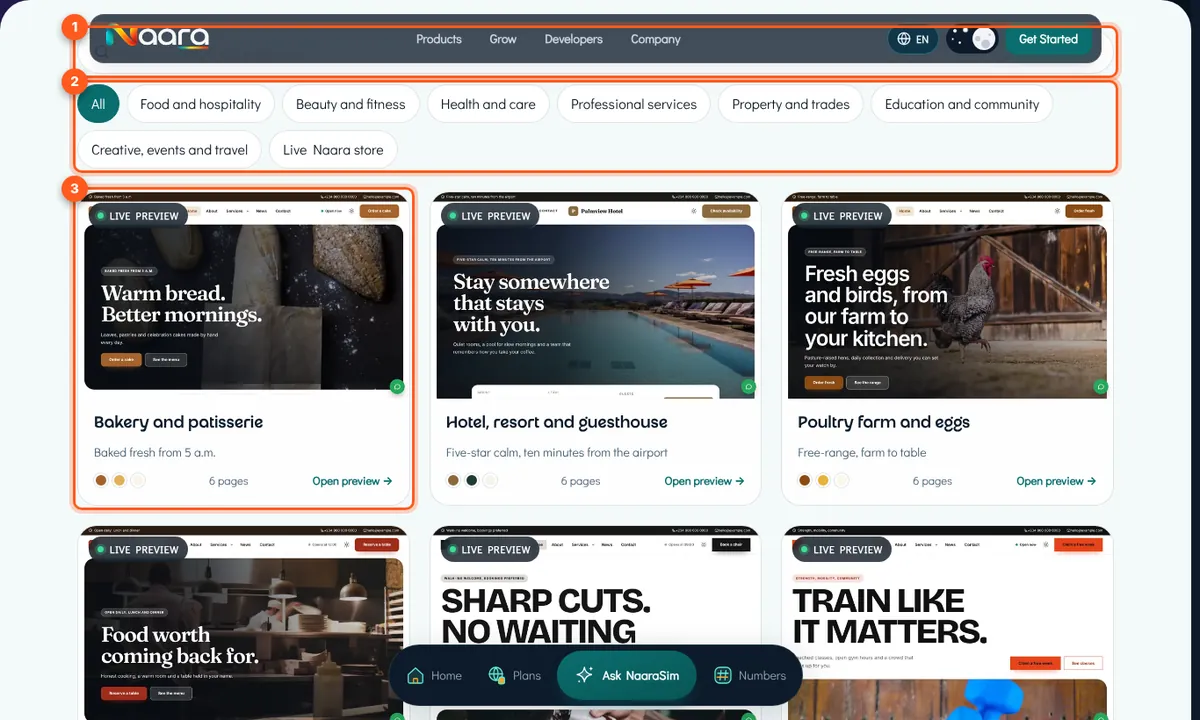
Each card shows the template's name, its tagline and its starting colours. Click one to open its preview.
#2. Click through the pages
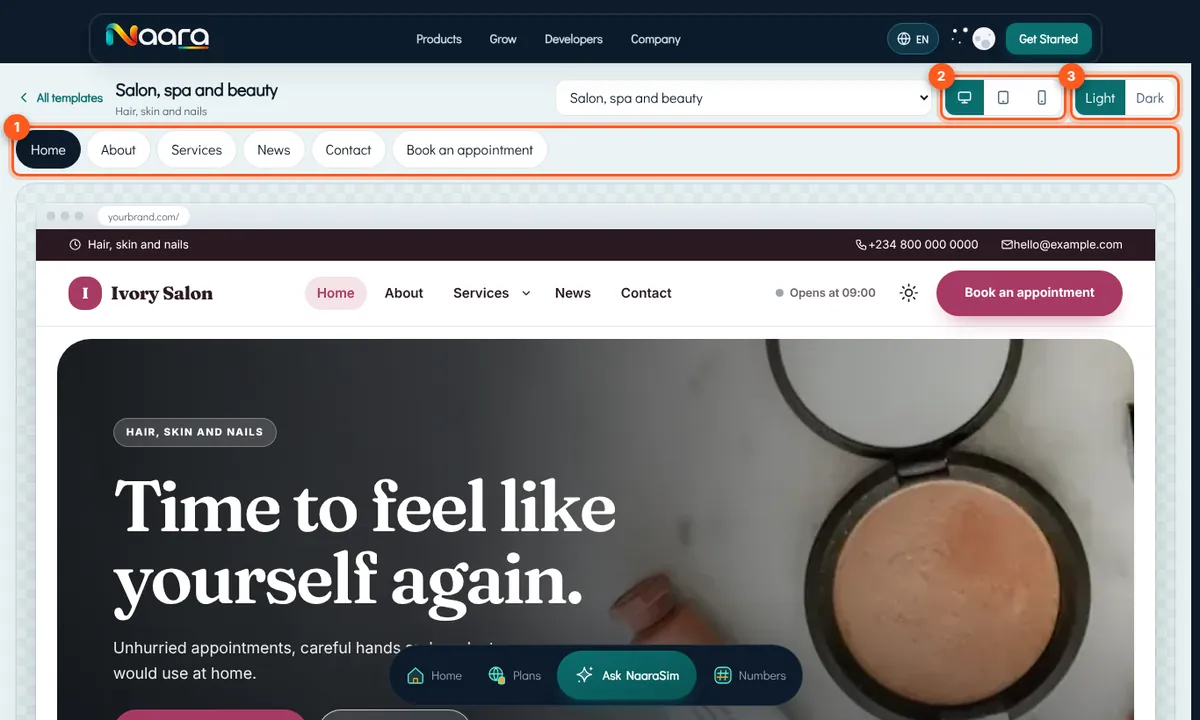
- Pages. Every template shows its inner pages, for example Home, About, Services, News, Contact and Booking. Click any tab, or use the website's own menu inside the frame.
- Screen size. Switch between desktop, tablet and phone. The phone view shows the menu button and the drawer your customers will use.
- Light and dark. Both are built in. Your visitors can switch too.
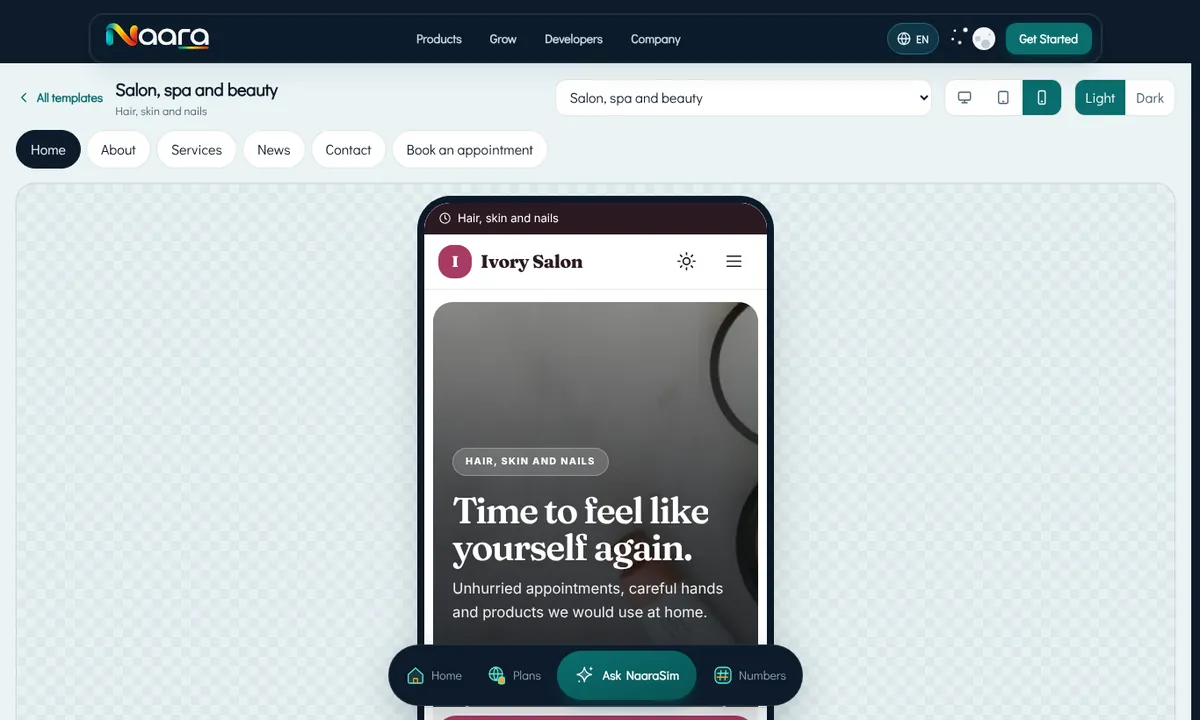
Note Names, phone numbers and photos in the previews are samples. Forms are switched off in previews. On your own site, you put your details in during setup.
#3. See what comes switched on
Scroll under the preview. Each industry has the features that suit it already on, such as a sticky Book bar on phones, a WhatsApp button, tap to call, an open-now badge or an availability strip.
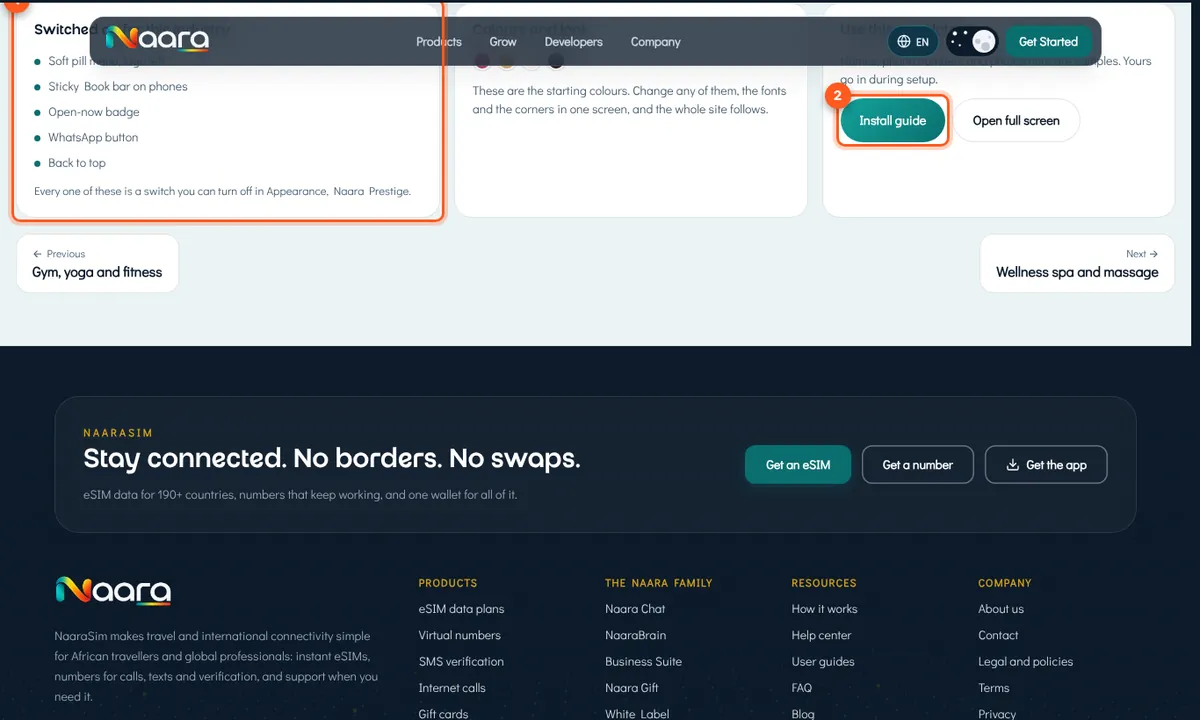
You can turn every one of them off or on later. See Set up Prestige.
#4. Use a template
Press Install guide on any preview. If you have already chosen, get your files and then install Prestige.
Tip You are not locked in. All 40 industries live in one theme, so you can switch your industry later from Appearance, Naara Prestige. Your pages are rebuilt for the new industry and your details stay.