Set up Prestige

Choose your industry, add your details, switch on the features you need, and create your pages and menu in one screen.

15 minutes BeginnerYour website

Everything happens in one screen: Appearance, Naara Prestige (or press Continue setup on the banner). Work from top to bottom and press Save changes once at the end.

#1. Choose your industry
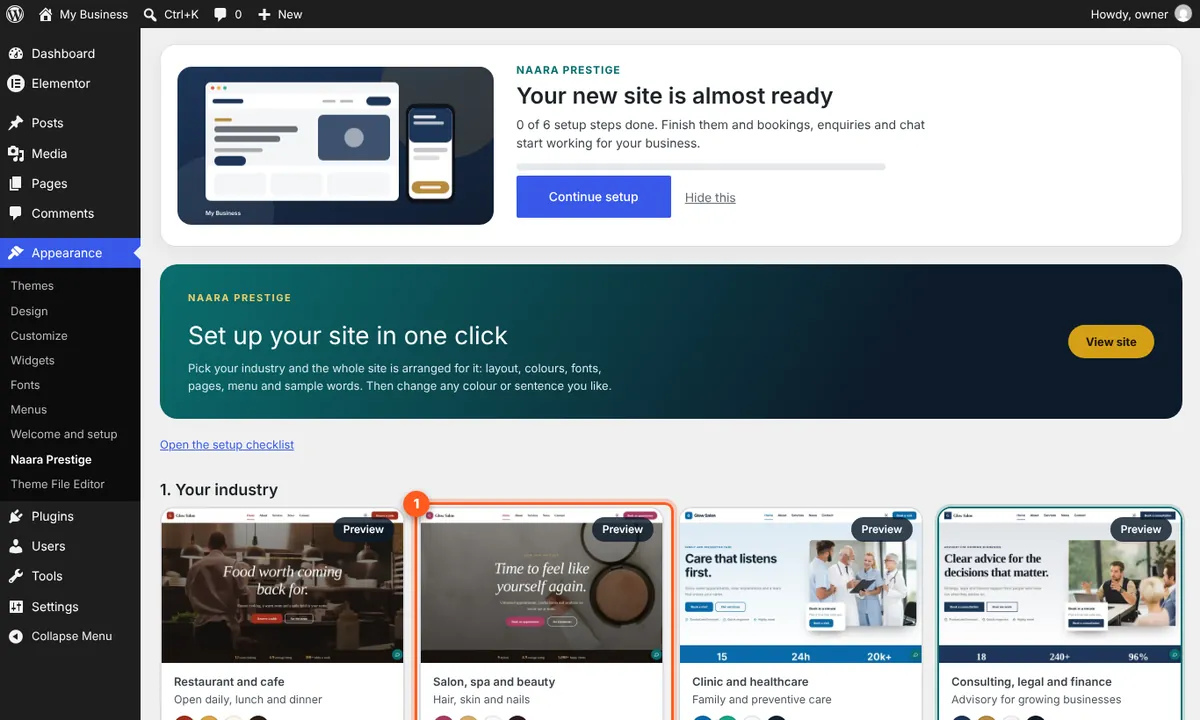
Naara Prestige settings. 1: an industry card.

Each card is a complete look: layout, colours, fonts, wording and pictures for that kind of business. Preview opens it on your own site without saving anything. You can also browse them all live first.
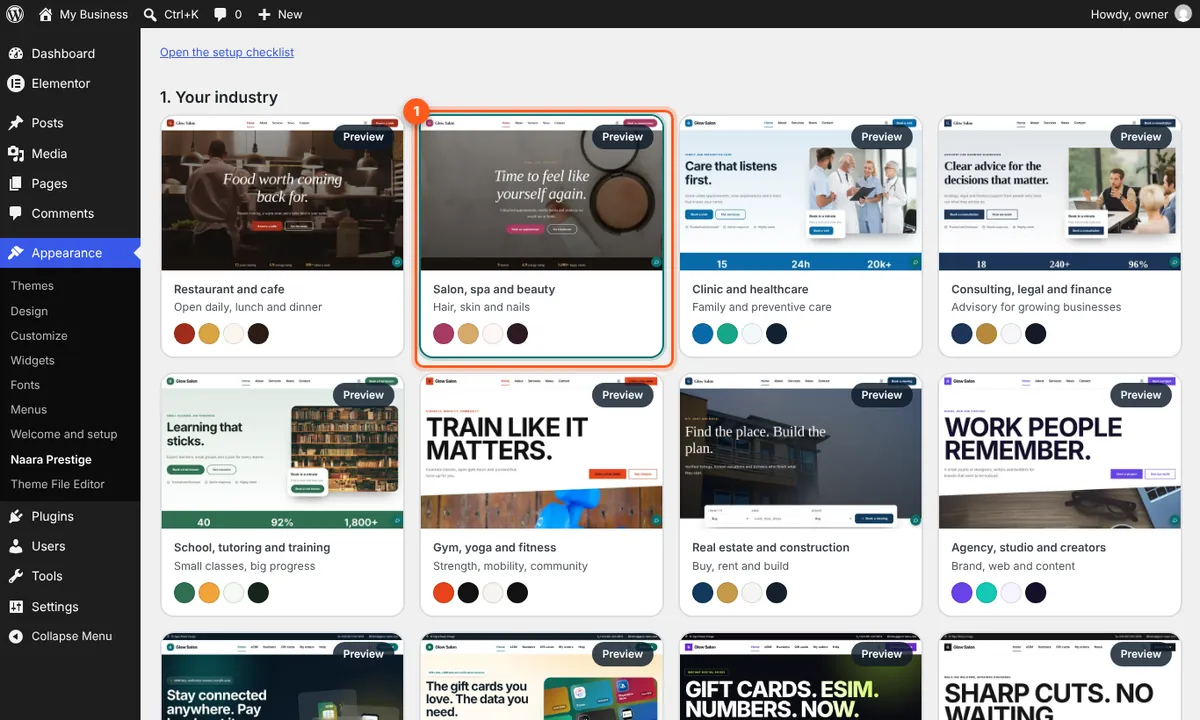
1: the chosen industry, 2: Create the pages, menu and booking page.

Click your card. Keep Create the pages, menu and booking page for this industry ticked the first time. It is safe to run again later.

Tip Changed your mind about the industry? Pick another card and tick use that industry's own colours. Your business details stay.

#2. Colours, type and shape
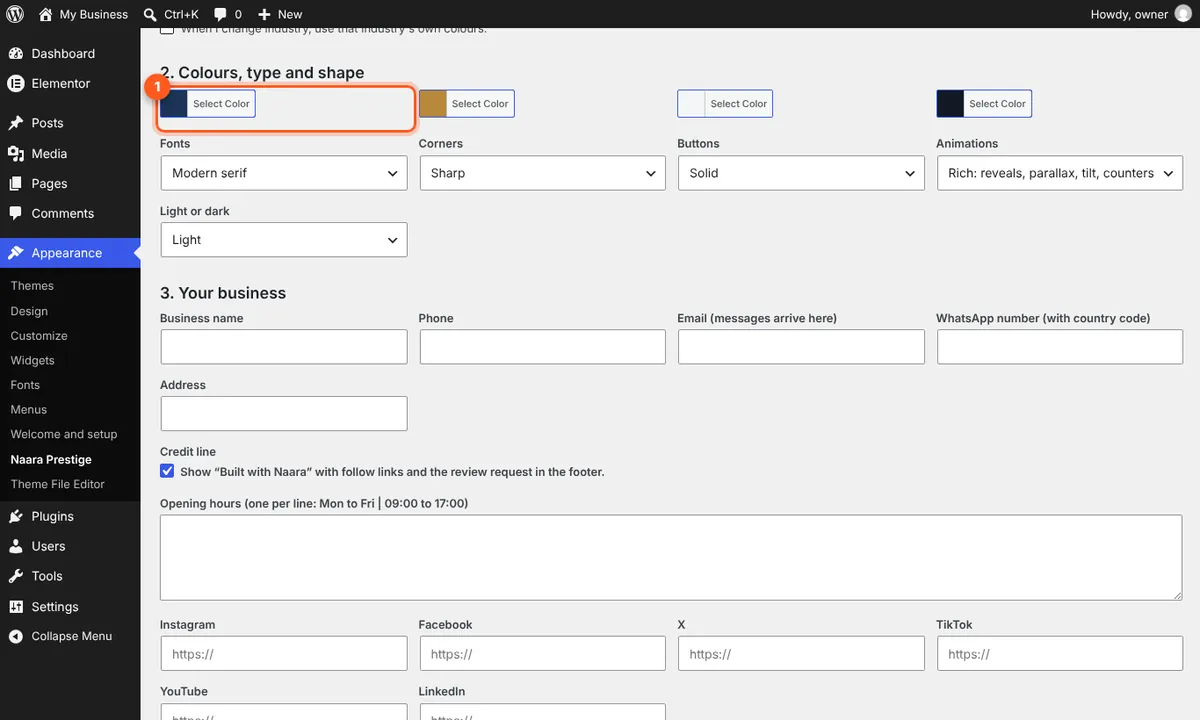
The colour, font, corners, buttons and animation choices.

Every industry starts with colours that suit it. Change any colour, the fonts, how round the corners are, whether buttons are solid or outlined, how much animation you want, and whether the site starts light, dark, or follows the visitor's device.

#3. Your business
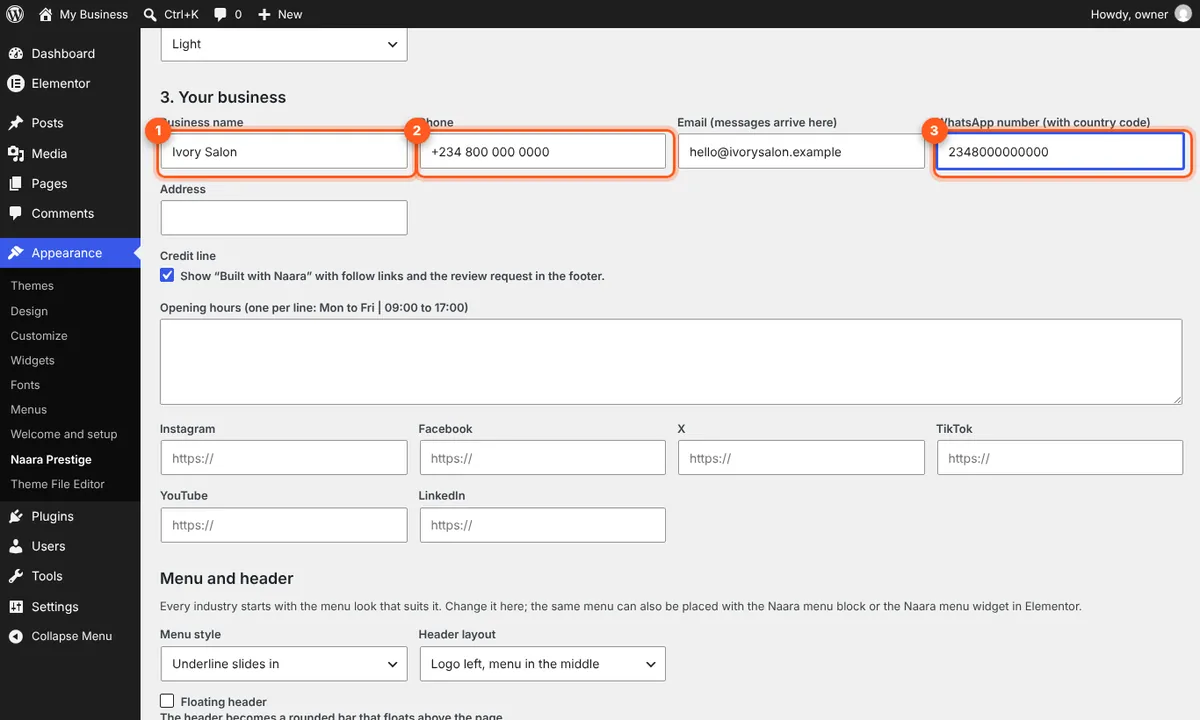
1: business name, 2: phone, 3: WhatsApp number.

Fill in your business name, phone, email, WhatsApp number (with country code, no plus sign, for example 2348000000000), address and opening hours (one line per row, like Mon to Fri | 09:00 to 17:00).

These appear in the header, footer and contact page, and the Open now badge reads the hours using your WordPress timezone (see WordPress basics).

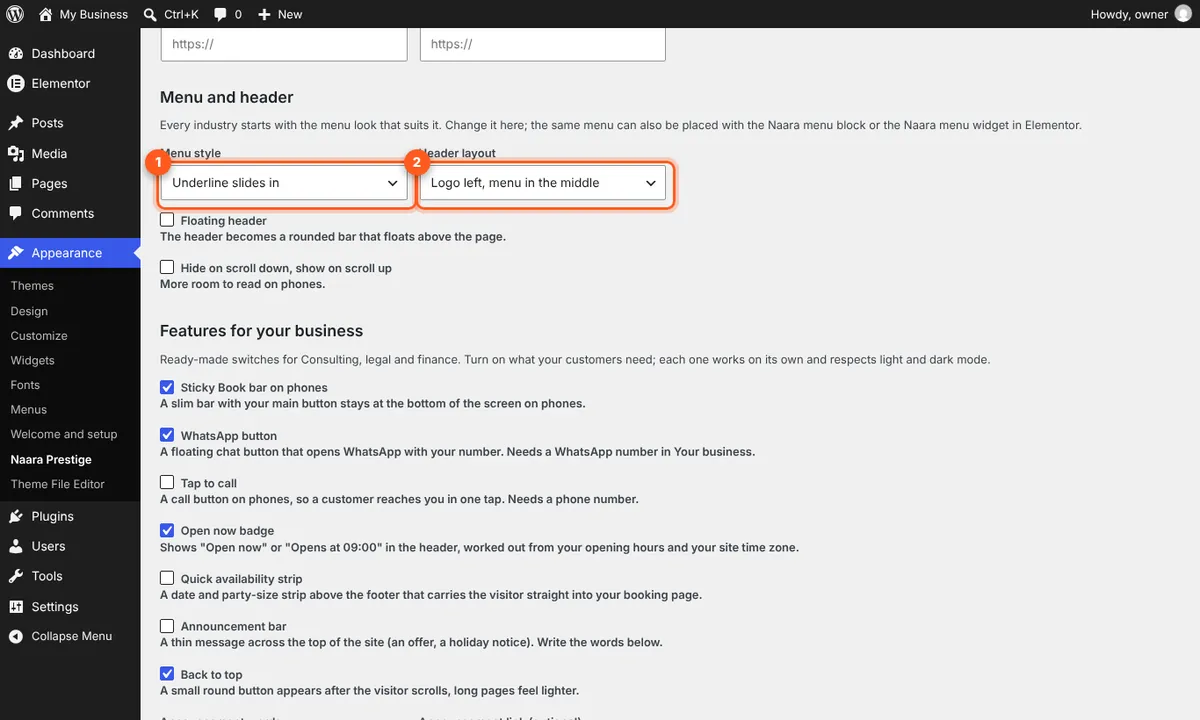
1: menu style, 2: header layout.

Each industry starts with its own menu character (sliding underline, soft pill, small capitals or a dot). Choose your own here, and choose a logo-left or logo-centred header. You can also make the header float as a rounded bar, or hide it as the visitor scrolls down. The full story is in Menu and header.

#Features for your business
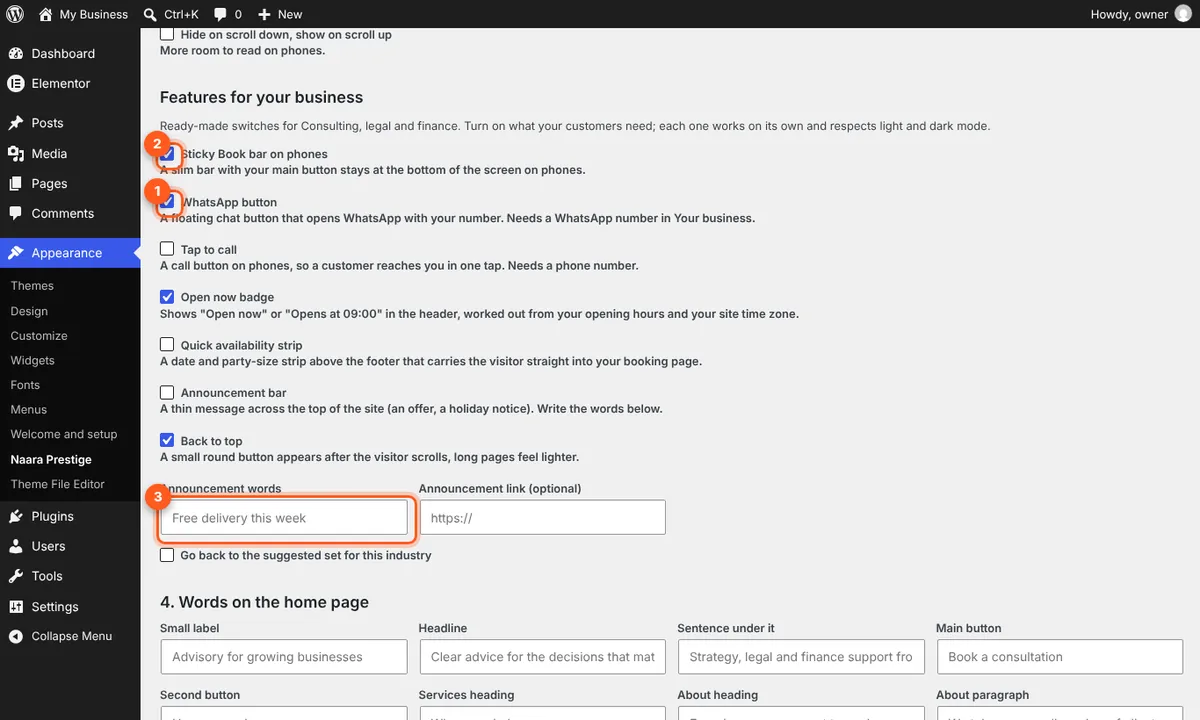
1: Sticky Book bar, 2: WhatsApp button, 3: announcement words.

These are ready-made switches. Your industry's useful ones are already on:

Feature What your visitors get
Sticky Book bar on phones Your main button stays at the bottom of the phone screen.
WhatsApp button A round button that opens WhatsApp with your number.
Tap to call A Call button on phones.
Open now badge "Open now" or "Opens at 09:00" in the header.
Availability strip A date and guests strip that carries them into booking.
Announcement bar A thin message across the top, for an offer or a holiday notice.
Back to top A small button after scrolling.

Tick what you want. To return to the suggested set, tick Go back to the suggested set for this industry.

#4. Words and pictures
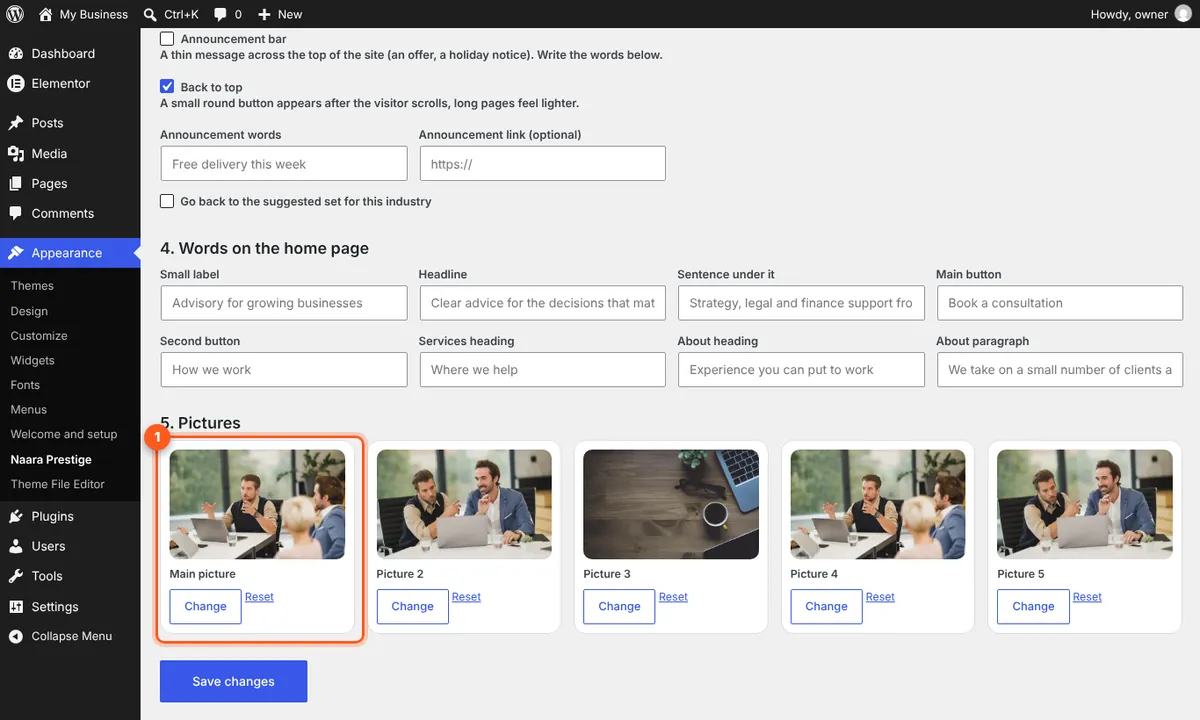
1: the main picture. Press Change to pick your own from the media library.

Change the headline, the sentence under it and the buttons, and swap any of the five pictures for your own. Anything you leave empty keeps the industry's own words and photos, so a page is never blank.

Tip Photos around 1600 pixels wide and under 300 KB keep your site fast.

#5. Save
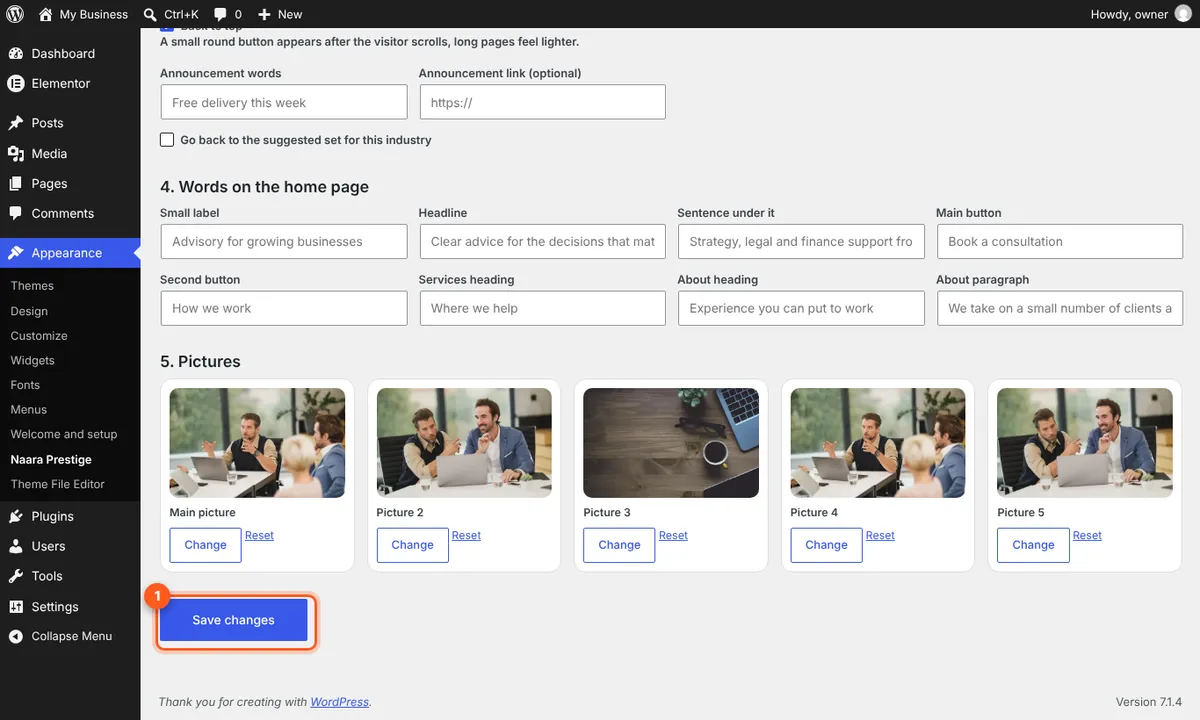
1: Save changes.
1: Save changes.

Press Save changes. You will see a green note.
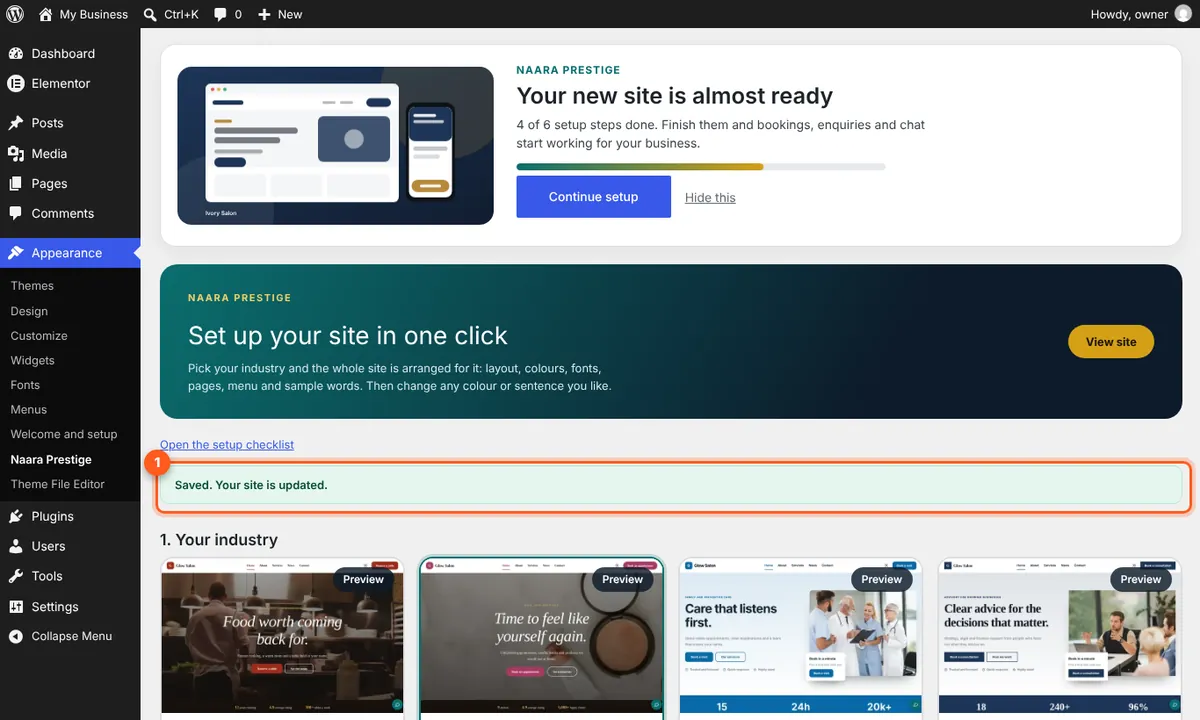
1: Saved. Your site is updated.

#6. What was created

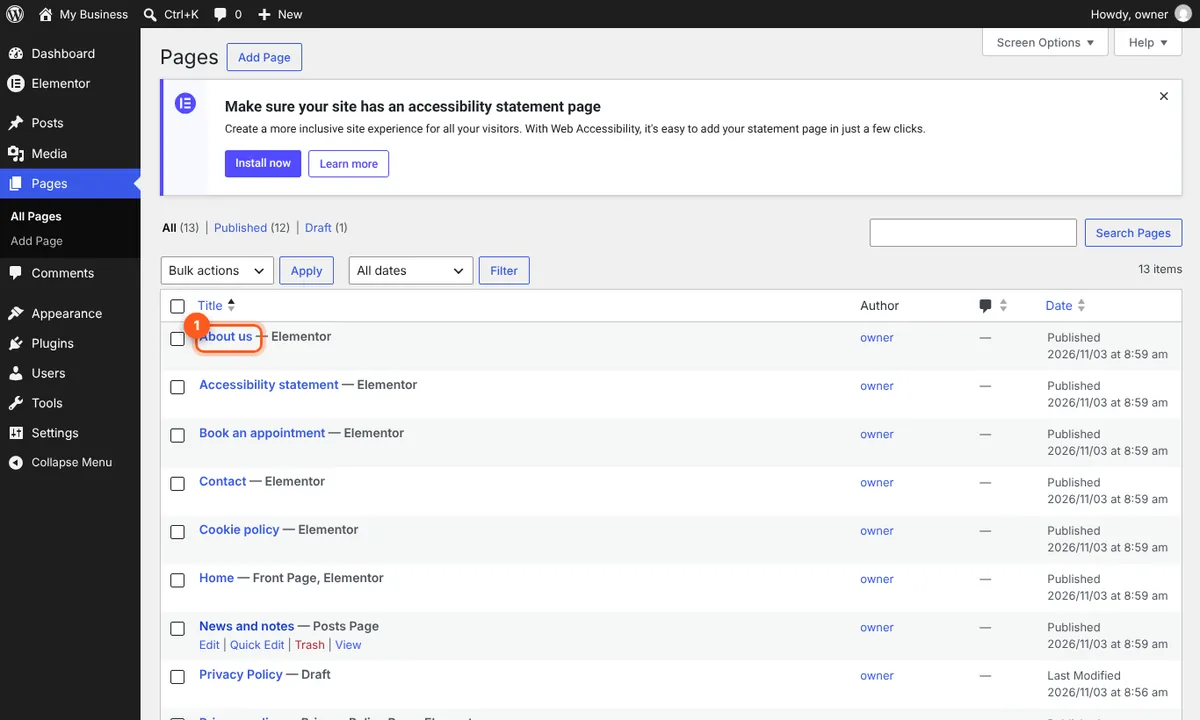
The Pages list now holds your pages, built with Elementor when it is installed.

Prestige created Home, About, your services page, Contact and a Booking page, plus the legal pages (privacy, terms, cookies, refunds, accessibility), a News page, a menu with a dropdown under Services, and set your front page.

#7. Look at your site
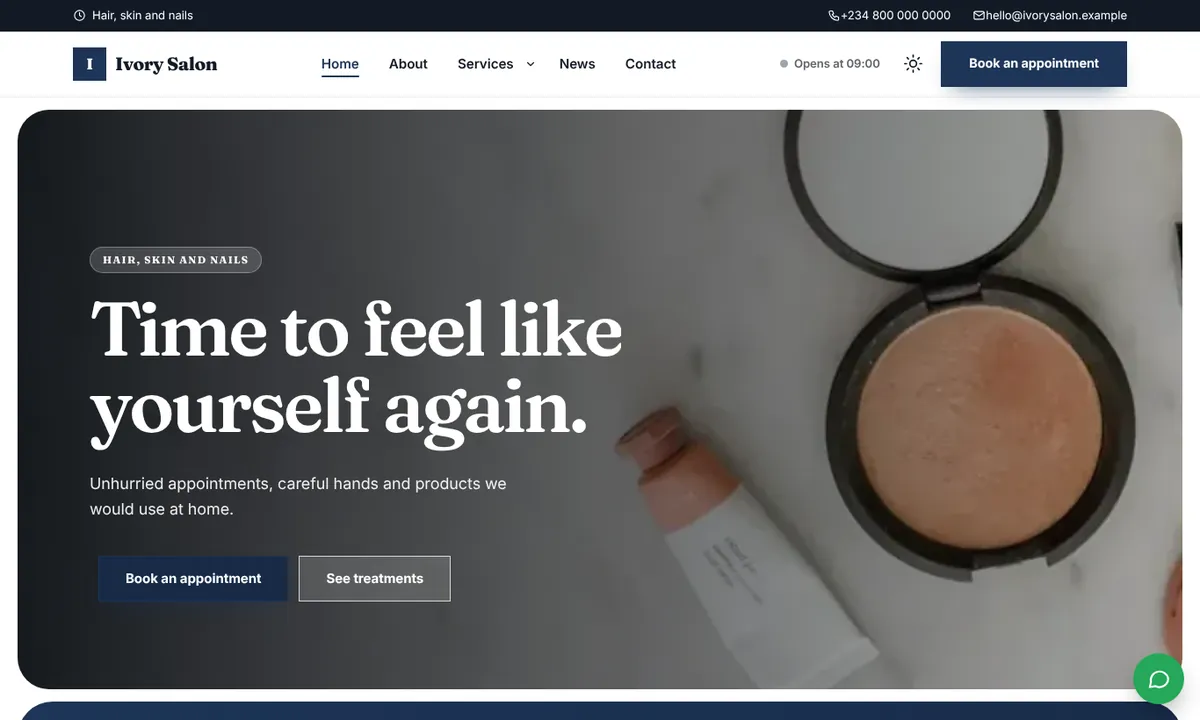
Your site on desktop.

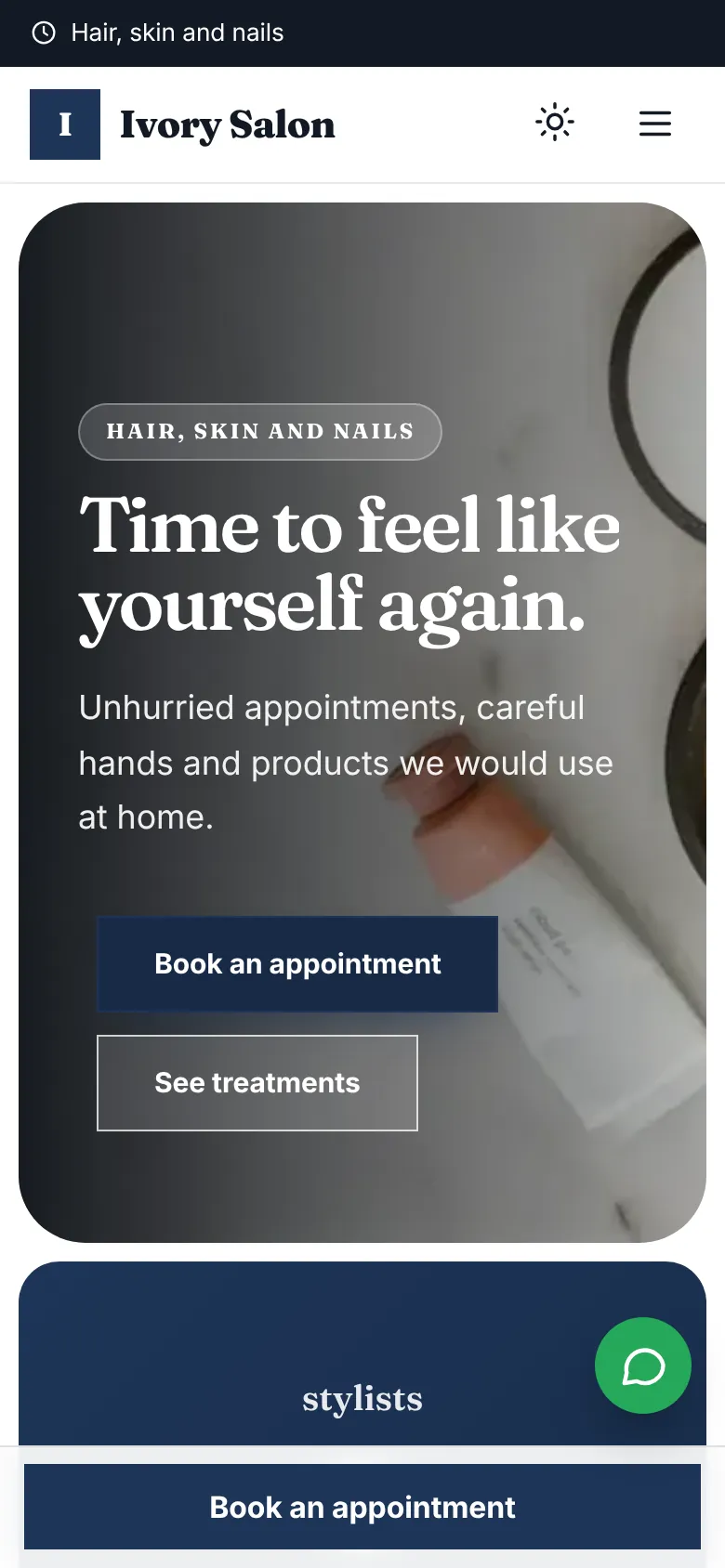
Your site on a phone. The sticky Book bar and the menu button are there.

Open your site in a new tab and on your phone. There is no separate publish step: it is live as soon as you save.

#Remove the sample content

If you want to start from nothing, press Remove sample content at the bottom of the Naara Prestige screen. It deletes only what Prestige created.

#Next

Make the menu yours, then connect to Naara so the Book button opens your live calendar.
Stuck? Open the Help Center from your Naara account and start a chat. Tell us the guide name and the step number. Help Center

From the Naara blog

All posts
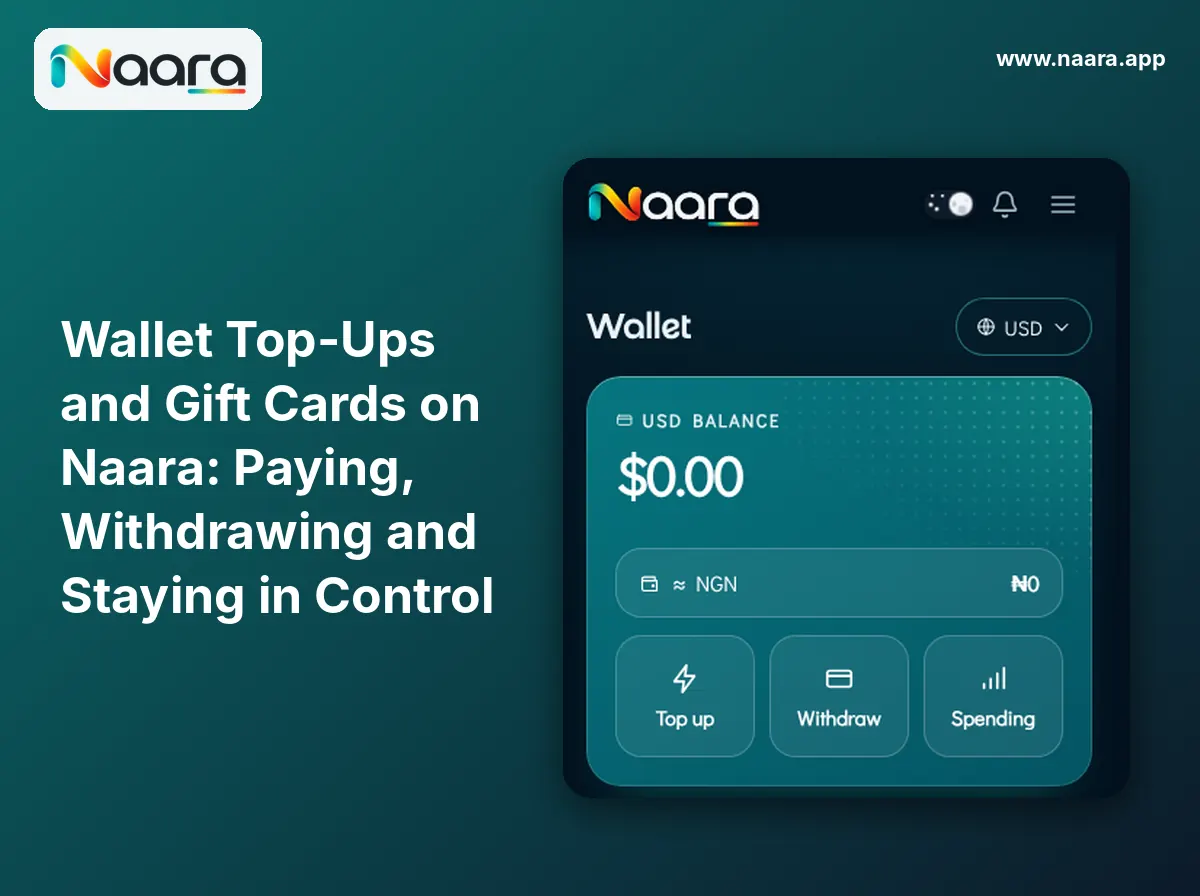
Naara Pro & Business Broadcast Messages Done Right: Consent, STOP and What Channels Allow A broadcast can build loyalty or burn your reputation. Here is how Respond handles consent, opt-outs and the rules that differ between channels. Oct 16, 2026 Money, Wallet & Pricing Wallet Top-Ups and Gift Cards on Naara: Paying, Withdrawing and Staying in Control One wallet pays for everything. Here is how to top up, which payment methods you can expect, how to withdraw earnings and how gift cards fit in. Oct 15, 2026 Naara Chat & Community Naara Chat Tips: Gestures, Status Updates and Other Things You Might Have Missed A quick tour of the small features that make Naara Chat faster: swipe to reply, status updates with mentions, scheduled messages and more. Oct 14, 2026 NaaraCredits & Loyalty Earn NaaraCredits by Following Brands: How the Rewards Hunt Works Follow a brand's real social pages, earn credits you can spend on chat and calls, and know exactly how it is checked. Oct 13, 2026 Naara Chat & Community Voice and Video Calls on Naara: What Makes a Call Connect (and Why TURN Matters) Calls inside Naara are peer to peer when they can be and relayed when they must be. Here is what that means for call quality and what to check if a call will not connect. Oct 12, 2026 Developers & Integrations Build on Naara: API Keys, Signed Webhooks and Testing Safely How to connect your own tools to Naara: create a key, call the API, receive signed webhooks and verify them properly. Oct 11, 2026 Developers & Integrations Sell eSIMs on Your Own Website With Naara Widgets and the WordPress Plugin Embed a Naara catalogue on your site, let visitors check out on a hosted page, and track every order, with or without writing code. Oct 10, 2026 Naara Pro & Business Launch Your Own Connectivity Brand: How Naara White Label Works White Label lets an agency or entrepreneur run the Naara platform under its own name. Here is the path from landing page to your own live install. Oct 9, 2026 Travel Handbooks The Naara Travel Handbook Store: Long-Form Guides for People Who Move Across Borders Short blog posts cannot cover a visa, a degree or a first lease. The Handbook Store has book-length guides, with a reader that can read aloud. Oct 8, 2026