Get your files from Naara
Where to download the theme and plugins, how to make your connection code, and what to do if a button is locked.
Everything you install comes from one page in your Naara account called Connect your website (also called the Bridge). Nothing else needs to be downloaded from anywhere.
#1. Open Connect your website
Sign in to Naara, open Business, and choose Connect your website (under More, or directly at /business/bridge).
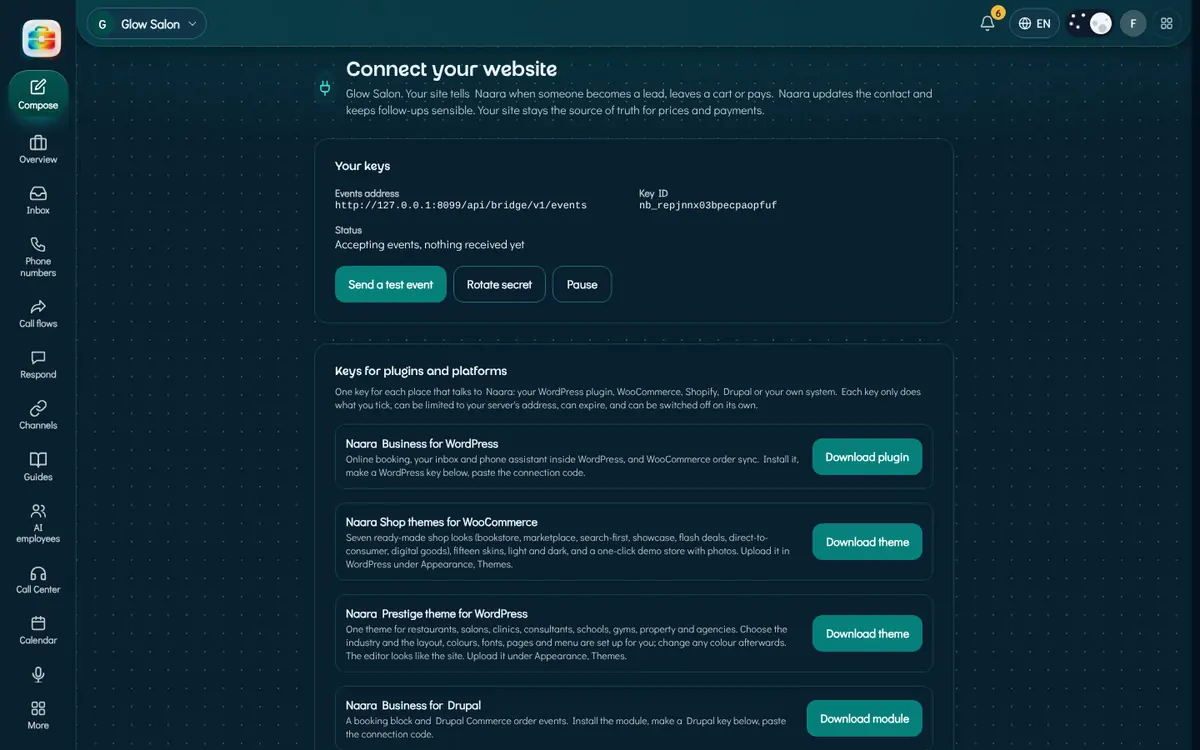
#2. Download what you need
| You want | Download | Then read |
|---|---|---|
| A business website for your industry | Naara Prestige theme | Install Prestige |
| Booking, inbox and shop sync in WordPress | Naara Business for WordPress | Install the Business plugin |
| An online shop look | Naara Shop themes | Naara Commerce |
| Bigger baskets in WooCommerce | Naara Commerce plugin | Naara Commerce |
| Website chat | Naara Respond Chat (Business, Channels, Website chat) | Website chat |
| Drupal, Joomla, PrestaShop, OpenCart | Module or extension | Other systems |
Each download is a .zip file. Do not unzip it. WordPress takes the zip as it is.
Careful If a download button shows a lock or says "paid resource", that item is part of a Naara plan or a one-time purchase. Open the plan or buy it from the same page, and the button unlocks.
#3. Keys are separate from files
The plugin you download is generic. What ties it to your account is a connection code you make on the same page. You will create it in the Business plugin guide. Keep it private, like a password.