Install and connect Naara Business
Upload the plugin, make your connection code in Naara, paste it into WordPress, and see Connected.
Naara Business is the plugin that ties your website to your Naara account. Once connected, bookings land in your Naara calendar, enquiries reach your shared inbox, and WooCommerce orders feed your follow-ups. Naara stays the source of truth: the plugin keeps no second copy of your customers.
You need the plugin zip from Get your files.
#1. Upload the plugin
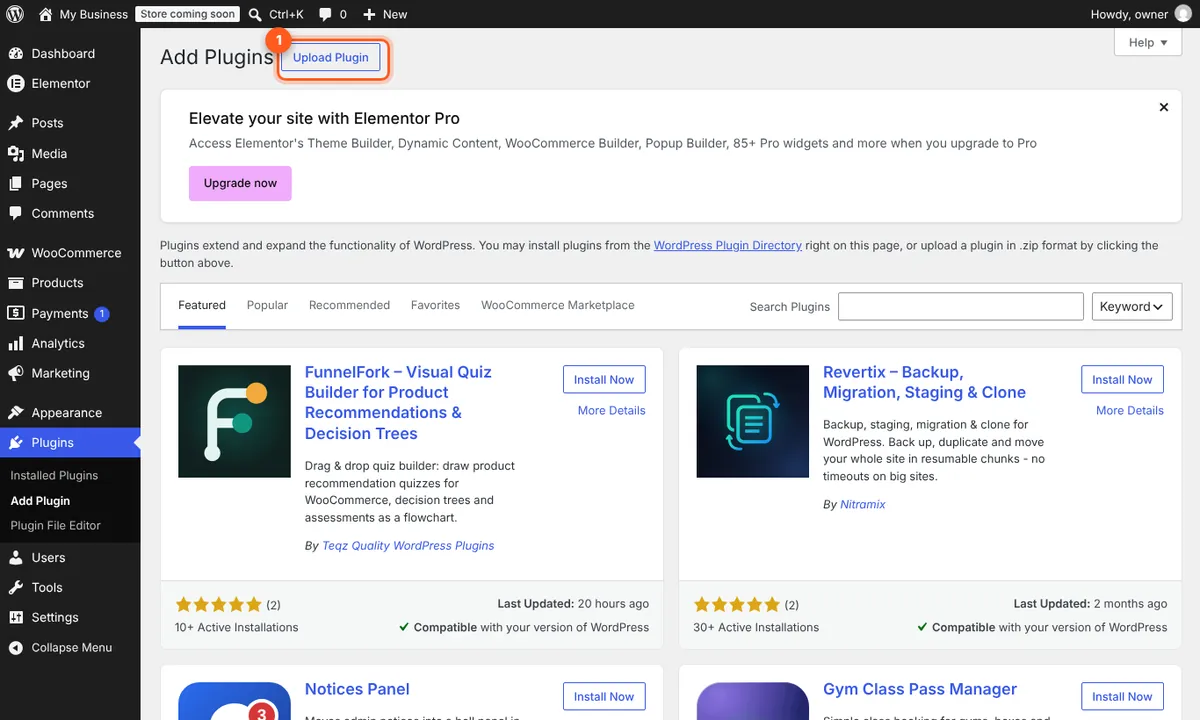
In WordPress go to Plugins, Add New Plugin and press Upload Plugin.
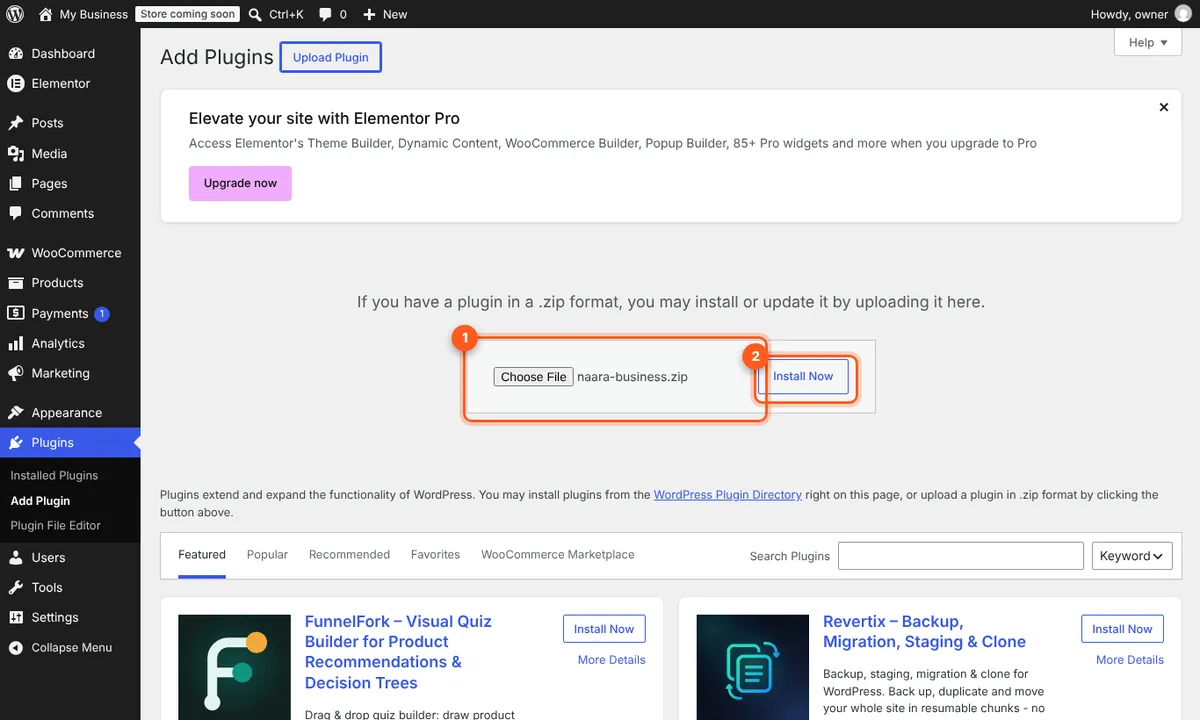
Choose naara-business.zip and press Install Now.
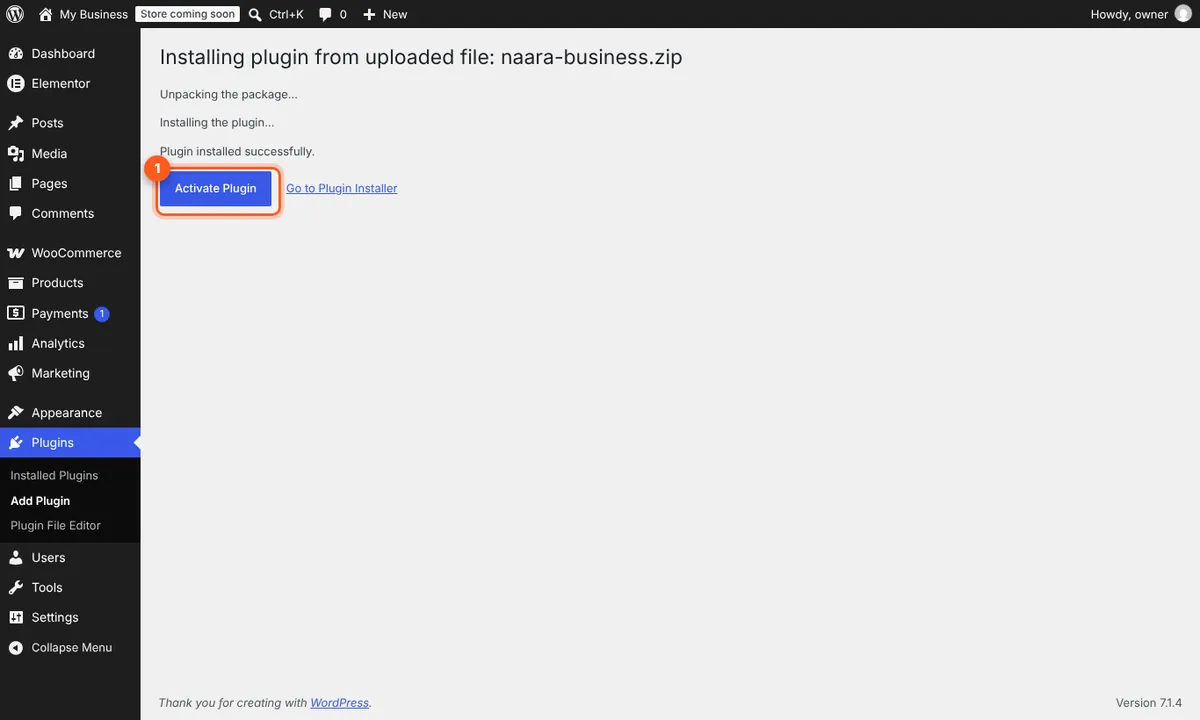
Press Activate Plugin.
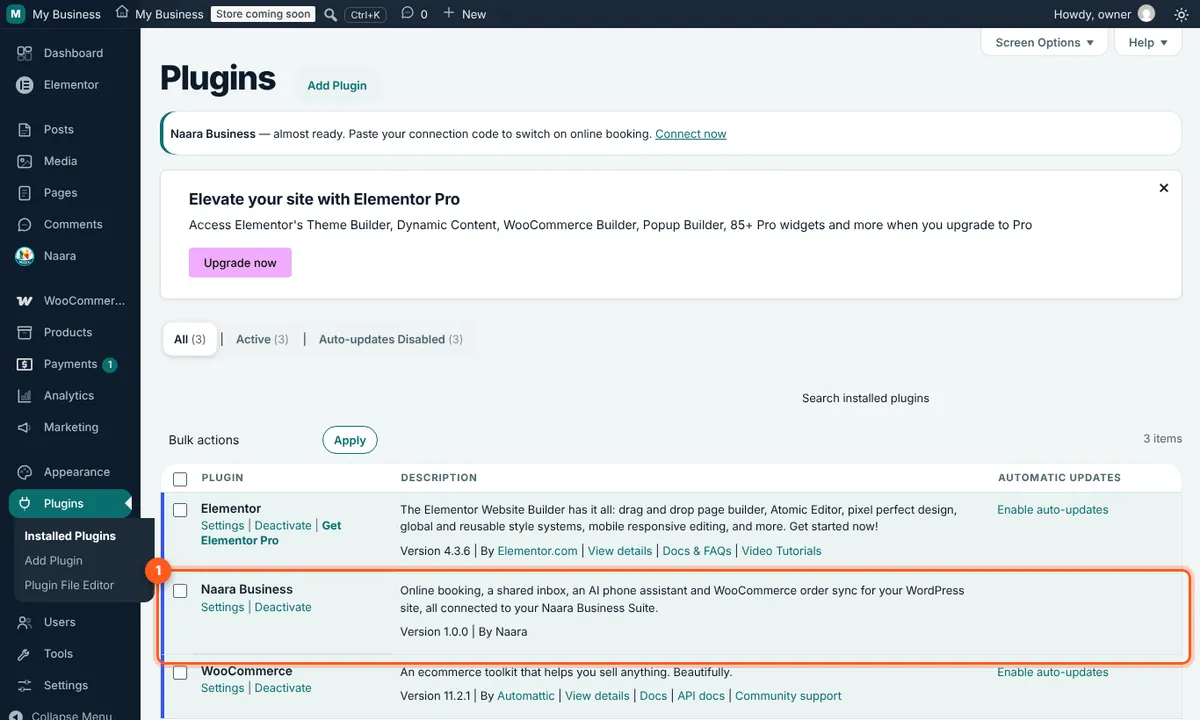
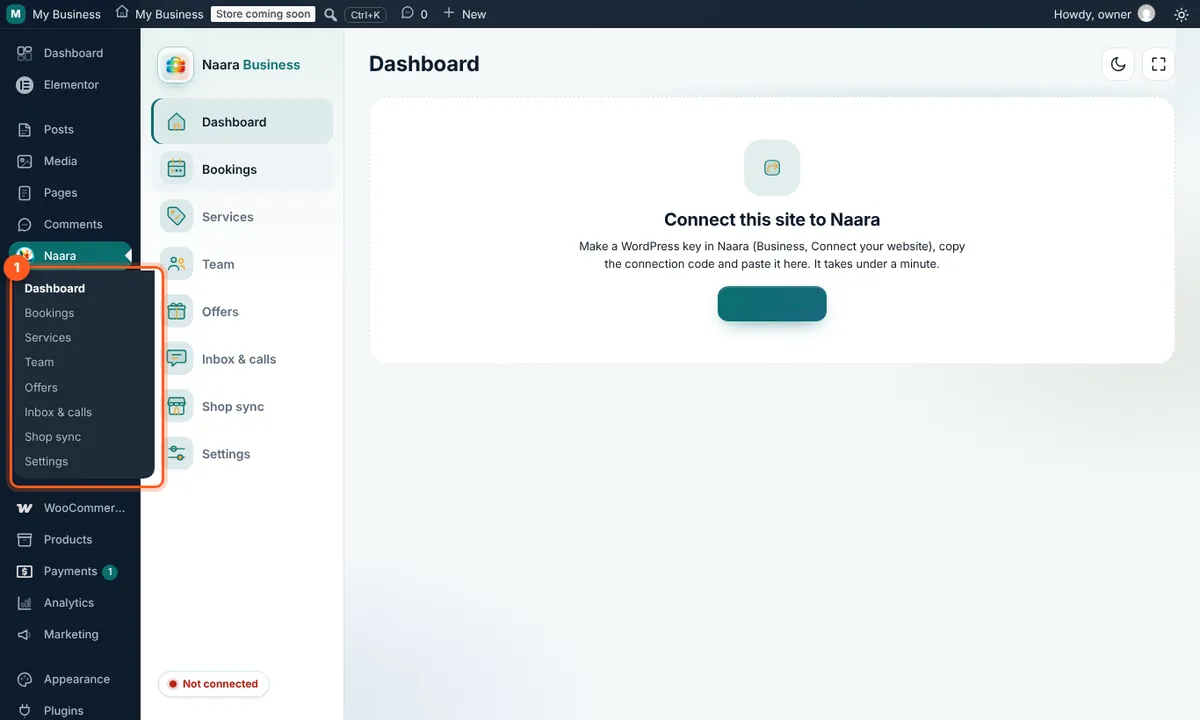
#2. A new Naara menu appears
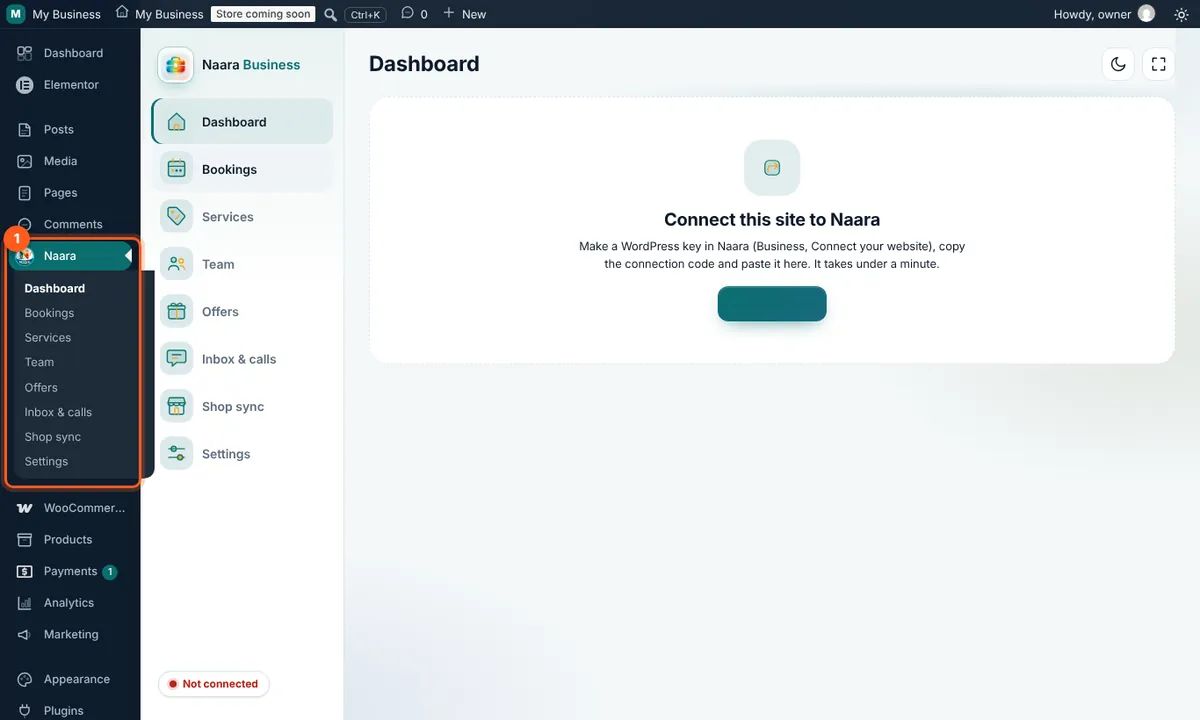
Click Naara. Until you connect, you will see a Connect this site to Naara card.
#3. Make your connection code in Naara
Open Naara in another tab. Go to Business, Connect your website (see Get your files).
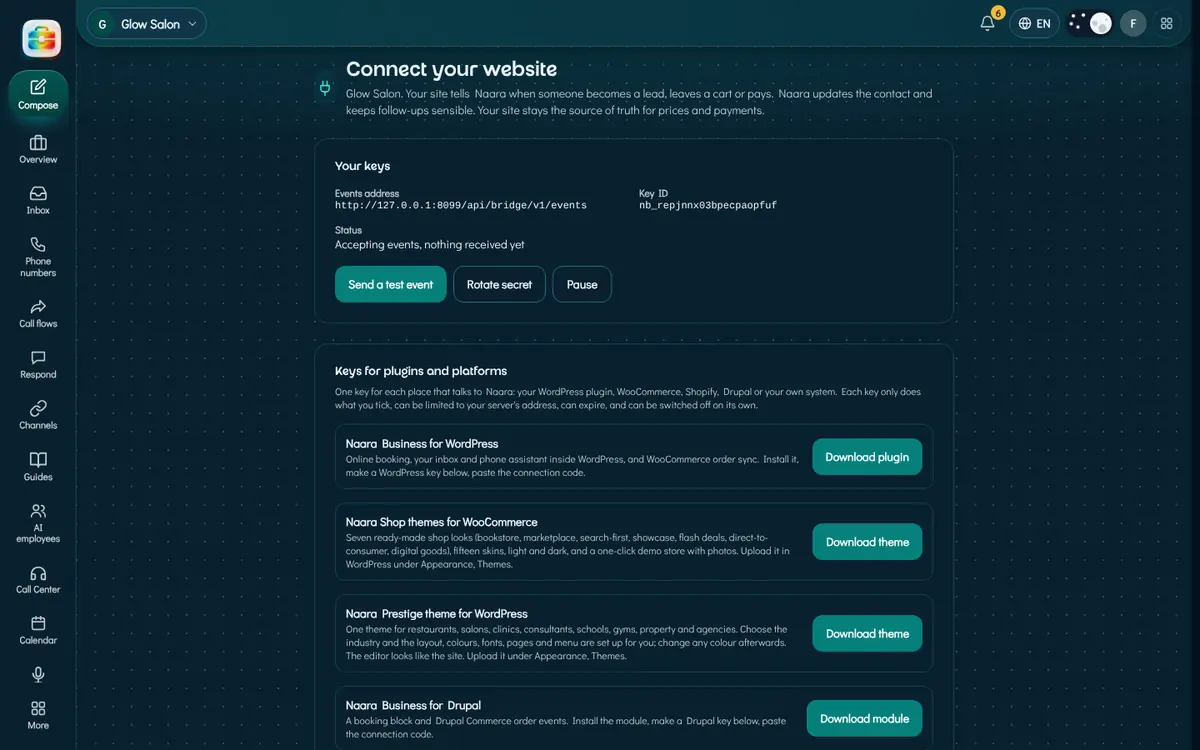
- Scroll to Keys for plugins and platforms and find Make a key at the bottom of that card.
- Choose Platform: WordPress, give the key a Name you will recognise ("Main website"), and tick What this key may do. For a normal site, leave the suggested ticks.
- Optionally fill Only from these addresses and Expires (never, or in 30 days and so on).
- Press Make this key. Naara shows a key ID and a connection code that starts with
naara1.Copy the code now. The secret is shown once.
Careful The code is like a password. Do not post it publicly or paste it into an email. If it leaks, press Rotate secret on the same page and make a new one.
Each key only does what you ticked, can be limited to your server's address, can expire, and can be switched off on its own.
#4. Paste it into WordPress
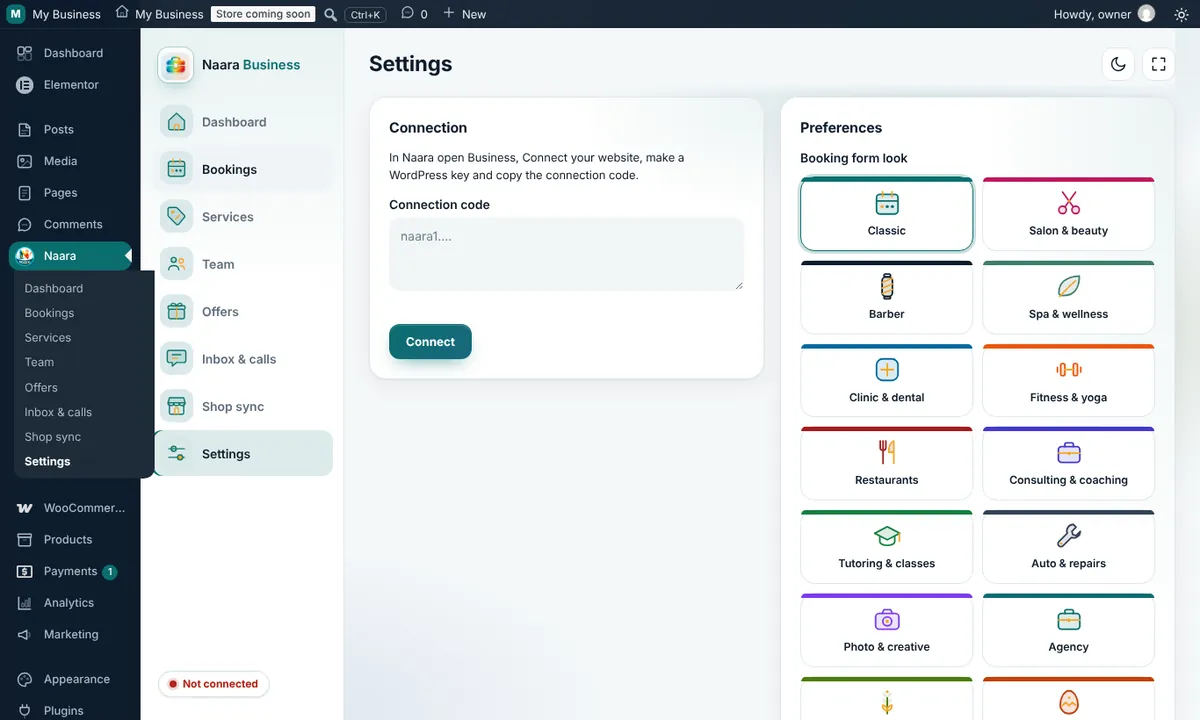
Back in WordPress open Naara, Settings, paste the code into Connection code, and press Connect.
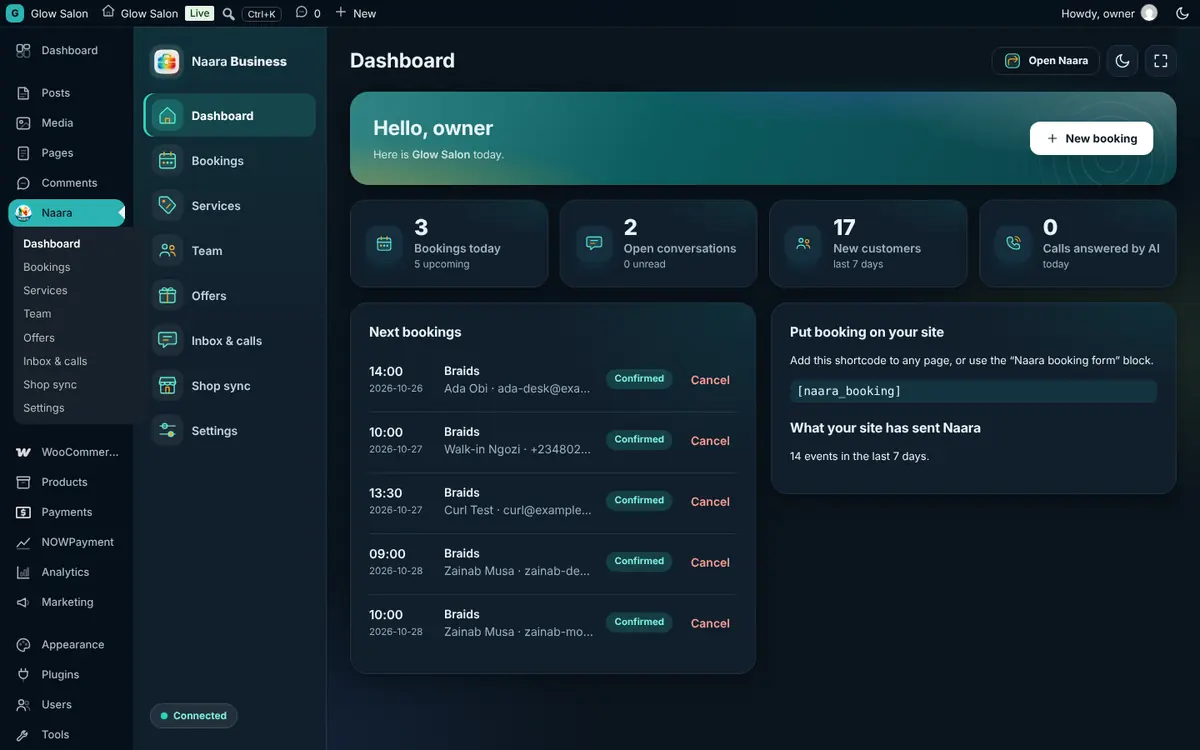
When it works, the status in the sidebar changes from Not connected to Connected, and your account's data appears.
#5. Choose your booking form look
On the same Settings screen, Booking form look offers thirteen looks for your trade: Classic, Salon and beauty, Barber, Spa and wellness, Clinic and dental, Fitness and yoga, Restaurants, Consulting and coaching, Tutoring and classes, Auto and repairs, Photo and creative, Agency and more. Pick the one that matches; you can change it any time.
#6. Check it from Naara
Back on the Connect your website page, press Send a test event. The status should change from "Accepting events, nothing received yet" to show the event arrived.
#What if it says "not connected" or "invalid"?
See Troubleshooting: connection problems.
#Prestige and Naara Business together
If you use Prestige, connecting is optional but recommended. Once connected, the Book button and your Booking page open your live calendar instead of the built-in form. If you ever disconnect, the built-in form takes over, so a customer can always reach you. Prestige's colour follows the colour you chose in your Naara dashboard until you pick your own.